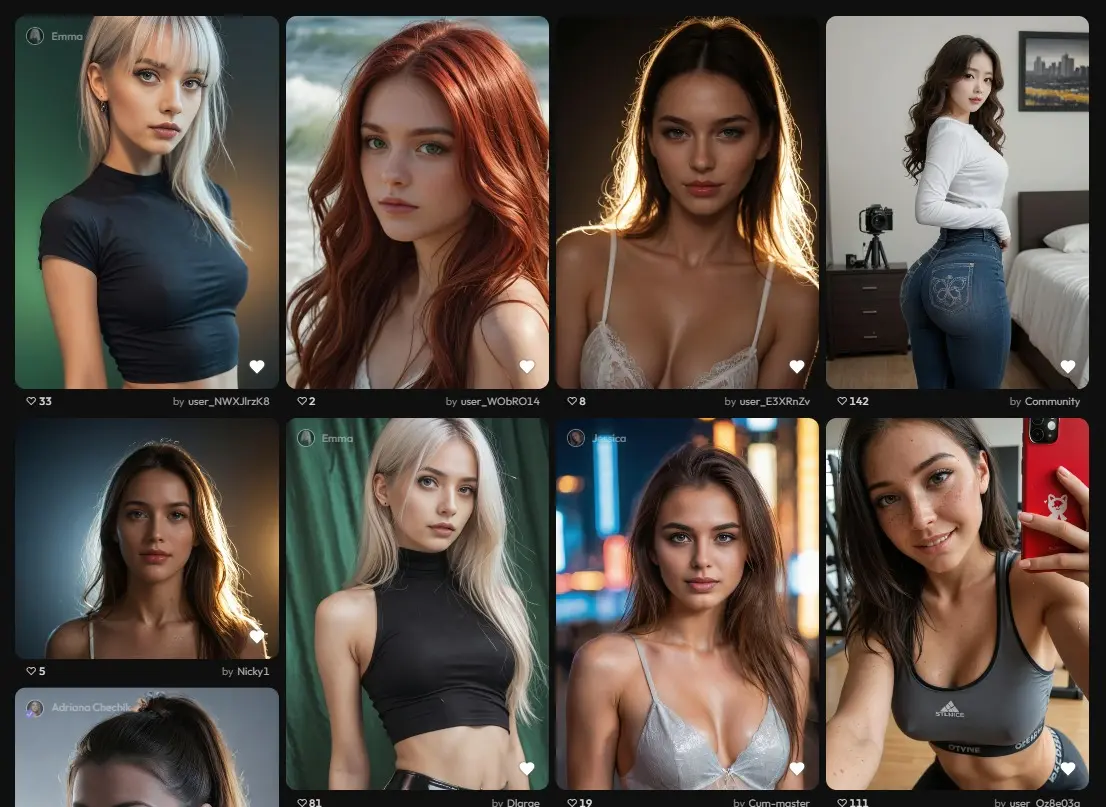
“Joi video maker” is a practical way people refer to Joi’s AI video generation workflow: you describe a scene in text, choose a few visual settings, generate short video variations, and refine until the clip matches your intent. Think of it as a compact production pipeline—closer to directing a micro-scene than “pressing a button and hoping.”
AI video creation differs from AI image creation in one key way: the system must maintain consistency across frames. A single image can look perfect, but a video needs stable identity (face, body), stable lighting, coherent backgrounds, and believable motion from frame to frame. That is why success with a Joi video maker workflow is less about “long prompts” and more about clear constraints and disciplined iteration.
Below is a structured, instructional guide to using a Joi video maker effectively, including prompt design, quality controls, and adding sound.
What a Joi Video Maker Does
A Joi video maker generates short clips based on inputs that typically include:
- Main prompt: a short description of the subject, location, and action
- Negative prompt (optional): a list of things to avoid (artifacts, distortions, text overlays)
- Style or model selection (where available): a preset that influences realism, anime look, cinematic rendering, etc.
- Format settings: aspect ratio (vertical/square/horizontal), resolution, and number of variations per run
- Media management: saving, favoriting, and reusing your best results
Even if labels differ slightly across versions, these are the standard controls that matter for output quality.
Step-by-Step: How to Make a Video
Step 1: Define the clip goal in one sentence
Decide what the video is for. Examples:
- “A cinematic character introduction.”
- “A short anime-style loop for a profile.”
- “A fashion walk in a clean studio.”
- “A calm portrait with subtle motion.”
A single clear goal prevents prompt overload.
Step 2: Choose one subject, one setting, one action
This is the highest-impact rule for AI video.
- Subject: “adult character,” plus defining traits (outfit, hair, mood)
- Setting: a simple place that will not flicker (studio backdrop, quiet room, empty street)
- Action: one primary motion (walks slowly, turns head, smiles, looks at camera)
If you try to combine multiple actions (walking, dancing, spinning, laughing), the clip often becomes jittery or inconsistent.
Step 3: Write a short prompt using a reliable structure
Use this formula:
Subject → Setting → Action → Style → Lighting → Camera framing
Example prompts (safe, non-explicit):
- “Adult character in a black coat, neon street at night, slow walk toward camera, cinematic lighting, shallow depth of field, calm confident mood.”
- “Adult anime character, quiet street at sunset, gentle hair movement and blink, clean linework, soft cel shading, warm color palette.”
- “Adult character, neutral studio backdrop, subtle breathing and small head turn, soft diffused light, sharp focus, medium shot.
Notice the pattern: the prompts are not long; they are complete.
Step 4: Add a negative prompt for quality control
Negative prompts reduce common defects. Start with a minimal baseline and expand only if needed.
Baseline negative prompt:
- “blurry, low detail, distorted face, deformed hands, extra fingers, extra limbs, text, watermark, logo”
If hands remain a problem, either:
- tighten framing (waist-up instead of full-body), or
- simplify the pose (hands relaxed, minimal gesturing)
Step 5: Choose aspect ratio based on where the video will be used
- Vertical: best for phone-first viewing and character-centered shots
- Square: balanced composition; often good for profile-like clips
- Horizontal: cinematic feel but requires more environment detaiL
If you pick horizontal, include a clearer background description (street, room, landscape) so the frame does not feel empty.
Step 6: Generate multiple variations, then select the best “take”
If the tool allows multiple outputs in one run, generate 2–4 variations. This is more efficient than producing one at a time because it lets you compare motion quality and stability immediately.
Choose your best take using a consistent checklist:
- face consistency across frames
- stable background (minimal morphing)
- hands and fingers look natural
- motion looks smooth (no sudden jumps)
Step 7: Iterate with one change at a time
This is where most users either improve quickly or get stuck.
Good iteration examples:
- Keep the same prompt, add one negative term (remove “text artifacts”).
- Keep the same prompt, change framing (full-body → medium shot).
- Keep everything the same, simplify the setting (crowded street → studio backdrop).
Avoid rewriting the entire prompt every attempt—if you change everything, you cannot learn what fixed the issue.
A Practical Table You Can Follow
| Task | What to do | Why it works |
| Stabilize identity | Use a consistent subject description; keep hairstyle/outfit simple | Reduces frame-to-frame “drift” |
| Improve motion | Request one action only; prefer slow movement | AI handles subtle motion more reliably |
| Reduce artifacts | Add a short negative prompt (hands, text, distortion) | Suppresses recurring defects efficiently |
| Improve composition | Choose aspect ratio intentionally; add environment detail for horizontal | Prevents awkward framing and empty space |
| Speed up success | Generate 2–4 variations and pick the best | Compares “takes” like a real production |
| Get predictable results | Change one variable per iteration | Makes improvements measurable |
How to Add Sound to Joi-Generated Videos
Many AI-generated videos are created as silent clips or without robust built-in audio control. In practice, the standard production workflow is to add sound in post-production using a video editor. This is normal even in professional workflows: picture and sound are often handled separately.
You typically add audio in three layers:
1) Background music (mood and pacing)
- Import the generated video into an editor.
- Add a music track.
- Lower the music volume to keep it subtle.
- Add short fade-in and fade-out transitions.
Best practice: match the music tempo to the motion. Slow movement looks best with steady, non-aggressive rhythm.
2) Voiceover (narration or character “presence”)
- Write a short script for 5–20 seconds (one idea only).
- Record your voice (or use a separate voice tool).
- Place the voiceover so the key words align with visual beats.
- Normalize audio so speech is clear.
Tip: If your generated video does not include reliable lip-sync, voiceover narration typically feels more natural than trying to match speech perfectly.
3) Sound effects and ambience (realism)
- Add an ambience bed first (city hum, wind, room tone).
- Add 2–5 small effects (footsteps, cloth movement, door click).
- Keep effects subtle so they do not overpower the scene.
Even a basic ambience track can make an AI clip feel substantially more finished.
Troubleshooting Common Problems
Problem: Faces change over time
Fix: simplify the prompt, reduce action intensity, tighten framing to a medium shot, keep lighting simple.
Problem: Hands look wrong
Fix: avoid complex gestures, use waist-up framing, strengthen negative prompt terms related to hands.
Problem: Background flickers or morphs
Fix: choose a simpler setting (studio, plain room), avoid busy patterns, reduce scene complexity.
Problem: Motion feels jittery
Fix: request slow, smooth movement; remove multiple actions; select a style/model known for stability (if options exist).
Best-Practice Workflow Summary
- One-sentence goal
- One subject, one setting, one action
- Short prompt + small negative prompt
- Generate 2–4 variations
- Pick the best take
- Iterate with one change at a time
- Add sound in an editor (music, voiceover, ambience)
Also Read-Unselect vs Deselect: Which Term Should You Use in Tech? 🖱️💡
